Laptop Overheating Repair: Causes and Fixes (2026)
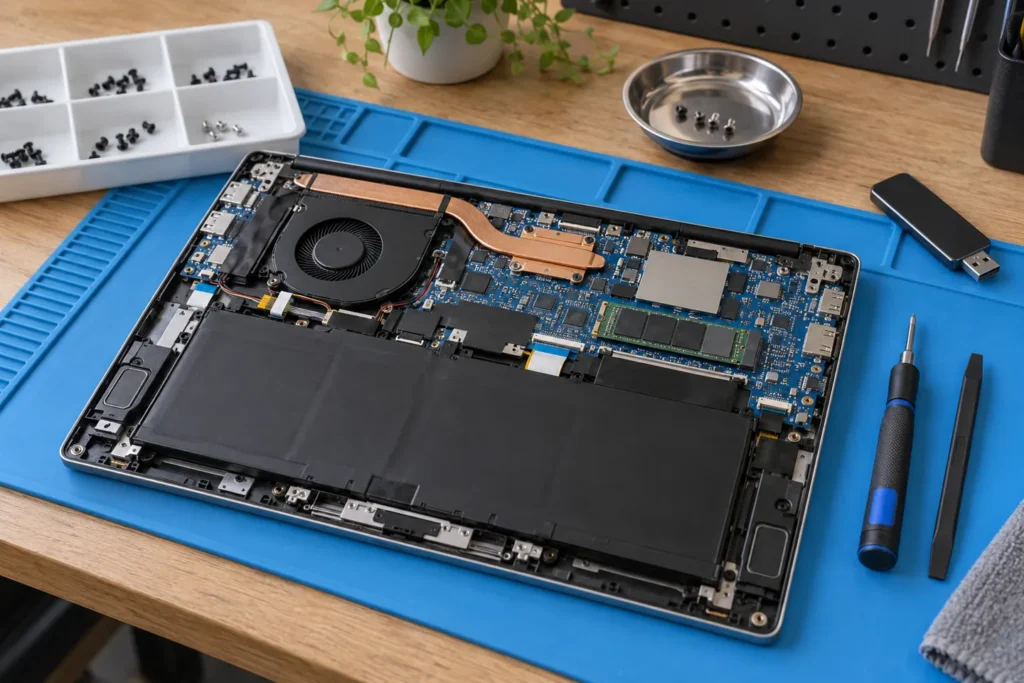
If a laptop becomes unusually hot, noisy or unstable, describe the workload and symptoms before buying a cooling service. Software load, airflow, fan faults, firmware behaviour, power settings and battery problems can overlap. One high temperature reading is not a diagnosis.
Stop first when there is a safety concern
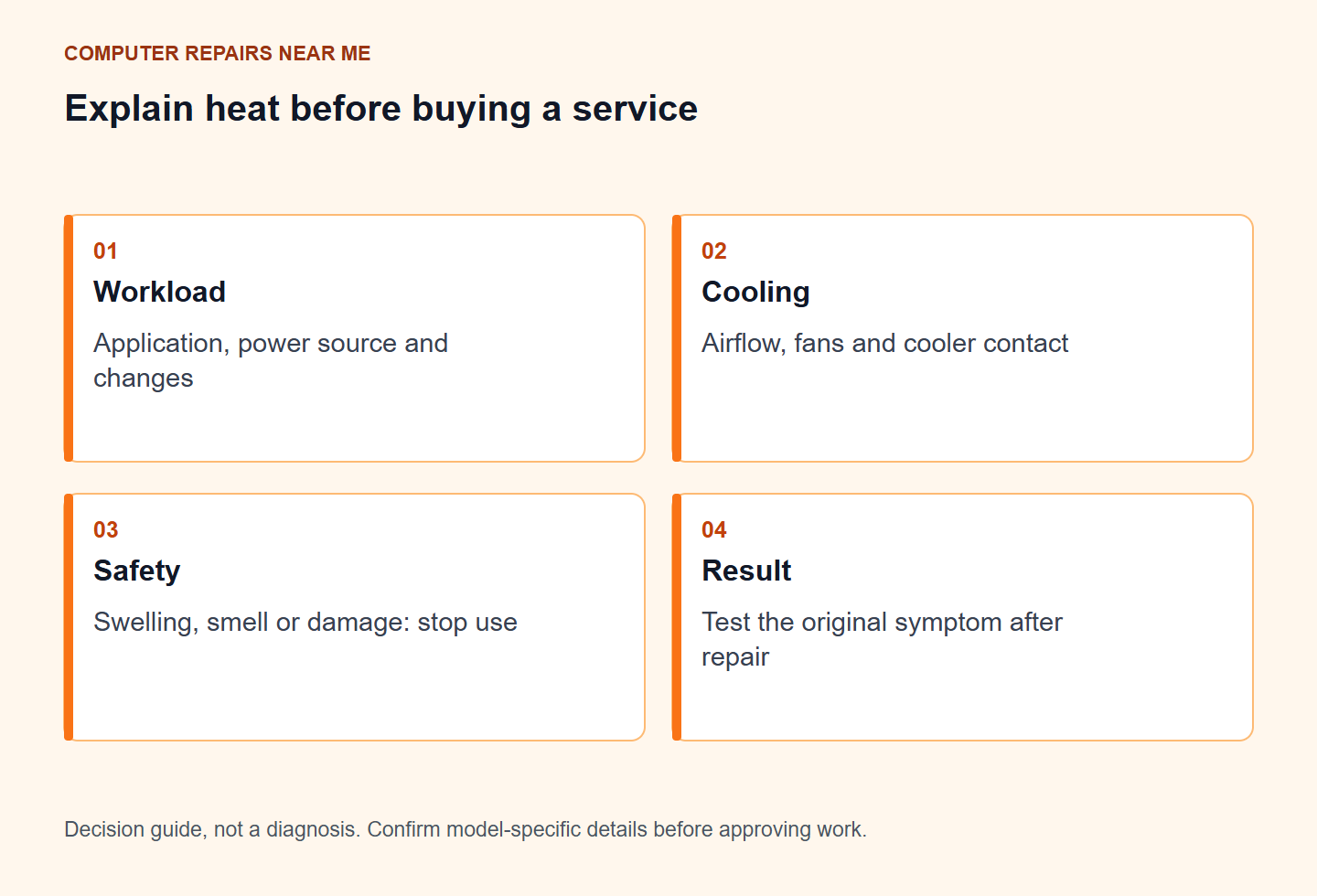
Power off and disconnect external power when safe if there is a burning smell, smoke, visible damage or battery swelling. Do not run games or stress tests to collect more evidence. Contact a competent repairer for handling advice.
Ordinary warmth or fan activity during demanding work is different. Note the model, application, power source and when behaviour changed. CPU/GPU sensor readings are not the surface temperature of the case, and acceptable operating behaviour depends on the model.
Safe observations before booking
Use the machine on a firm surface with vents unobstructed. Note whether a case, fabric or dock blocks airflow. Check whether a particular application is consuming resources, if the laptop is stable enough to inspect normally. Do not repeatedly reproduce shutdowns.
Use model-specific manufacturer troubleshooting. Avoid firmware flashing on a machine that may shut down during the update; ask the repairer to assess stability first. Do not use third-party driver utilities or follow teardown instructions for a different generation.
What a cooling quote should explain
Ask whether the inspection found dust blocking fins, a fan fault, poor cooler contact or another cause. Cleaning and thermal-interface replacement are different operations. The model may use paste, pads or another material with specific fitting requirements.
A service should be followed by suitable functional testing and a report of whether the original symptom remains. It cannot promise temperatures below the design’s capability. Ask whether the quote includes diagnosis, parts, labour, GST and the next step if cleaning does not resolve the fault.
Scroll sideways if needed to read all columns.
| Reported symptom | Useful information for the workshop |
|---|---|
| Fan runs loudly | Workload, room conditions and recent changes |
| Shuts down in games | Application and power source; no further stress loops |
| Hot or distorted case | Any swelling, smell or visible damage |
| Problem after an update | Exact update if known; avoid speculative resets |
Prepare for an assessment, not a guaranteed repaste
Bring the specified charger and describe any substitute used. Back up files only when the machine is safe and stable. Discuss data access and any proposed reset separately from cooling work.
Compare major board or battery costs with the rest of the laptop’s condition using the repair-or-replace guide. For a gaming notebook, use the gaming-laptop checklist. Find contact options through the directory and confirm the workshop handles your model.
By Computer Repairs Near Me Team. Reviewed 2 November 2026. About our directory.
Find a repairer for this job
Check local repairers and ask whether they handle your device and fault.