
Gaming PC Repair: What to Check Before You Book
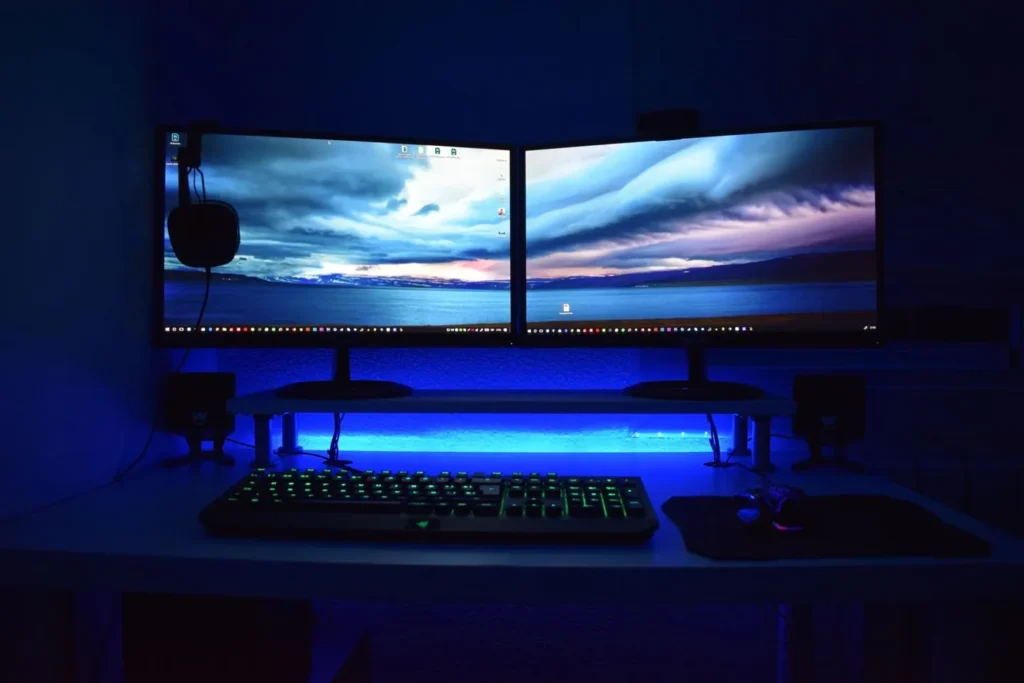
Gaming PC repair is a different job from fixing an office desktop. Crashes under load, GPU driver loops, weak power supplies and heat-related shutdowns sit in a different fault bucket than email or printer issues. Write down when the fault hits before you book, because that timeline is half the diagnosis.
Browse Australian shops and onsite techs in our locations directory. For general tower faults see PC repair near me. Heat-focused laptop work is covered in laptop overheating repair.
Write down the trigger before you call
Does the PC crash only in games, after ten minutes of load, at the BIOS splash, or right after a driver update? That single detail helps separate heat, power, GPU, RAM and software problems. If it only dies in one title, bring the game name and the API (DirectX or Vulkan). If it dies in every heavy app, say that too.
So note any recent changes: new GPU, undervolt, XMP/EXPO RAM profile, fresh PSU, cable reseat, or Windows update. Shops waste less bench time when they aren’t guessing if you pushed 1.4 V on memory for a week. If you can, photograph the error screen or Event Viewer critical errors before the machine locks hard.
But don’t keep hammering a failing build just to collect more “proof”. One clean reproduction is enough for most techs.
Common gaming PC faults shops see
- No power: PSU, motherboard short, front-panel wiring, or a failed GPU that pulls the rail down.
- Crashes in games: GPU driver, overheating, PSU sag under load, unstable RAM timings.
- High temperatures: dust, blocked intake, dead fan, cooler mount, dried paste, poor case airflow.
- No display: GPU, cable, monitor input, RAM seating, or a BIOS that won’t hand off to the discrete card.
- Stuttering: storage bottlenecks, background capture software, thermal throttling, driver conflicts.
Custom loops and exotic RGB controllers add failure points office PCs don’t have. If your loop has been quiet for two years and suddenly gurgles or drops pressure, tell the shop before they tip the case. Same rule for vertical GPU mounts and riser cables: mention them up front so they don’t chase a “GPU fault” that is actually a flaky riser.
What to bring (and what to leave at home)
Bring the tower, the PSU power lead, and any dongle you need for display output. Write the CPU, GPU, motherboard and PSU models on a sticky note if you know them. Photos of the interior help when the shop is quoting a cooler or fan kit. If the fault only appears with a particular monitor or USB headset DAC, say so. Leave the RGB strip collection and the spare case fans unless they asked for them.
If you’ve been using manufacturer overclock profiles, reset to stock defaults before drop-off when the machine still boots. Unstable XMP can look identical to a dying GPU under games. Shops will retest at stock anyway, but you’ll save a day of back-and-forth if you’ve already ruled out your own settings.
Stop stress testing a failing PC
If the PC smells hot, shuts down suddenly, clicks, sparks, or trips a power point, stop. Repeated FurMark or Cinebench loops on a failing part can turn one dead GPU into a dead GPU plus a cooked PSU. You’re not helping the tech by “proving” it fails five more times.
Same caution after liquid spills near the rear I/O or a custom loop weep. Power off, unplug, and book diagnosis. Don’t towel-dry and fire it up “just to see if Windows still loads”.
Shop, mobile, or specialist?
Most gaming PC repair jobs are workshop jobs. Techs need space to reseat cards, swap PSUs, and load-test. Mobile visits suit software-only crashes and simple reseats when you can describe the build clearly. Board-level GPU repair is rare at suburb shops; expect a frank “replace the card” quote more often than a microsolder fix.
Ask whether they own a known-good PSU and spare GPU for swap testing. If they don’t, you’re paying for parts roulette. For price sanity checks use our computer repair cost bands (estimates only). If the quote climbs toward a new mid-range build, read is it worth repairing my computer before you approve.
Questions worth asking at the counter
- Will you load-test after the fix, or only confirm Windows boots?
- Do you keep my overclock settings, or reset BIOS to defaults?
- If the GPU is dead, can I keep it for RMA while you fit a temporary card?
- Is the diagnostic fee credited if I proceed?
Get the answers on the job sheet. Gaming builds are expensive; vague verbal promises are how people leave without a warranty window written down. For fee language, see no fix no fee explained.
Frequently Asked Questions
Can a normal computer shop fix a custom water-cooled PC?
Many can diagnose power and GPU faults, but not every shop will drain and refill a custom loop. Ask before you book. If they look uncomfortable, find a gaming-focused workshop via locations.
My PC only crashes in one game. Is that still a hardware fault?
It can be. Shader bugs and anti-cheat conflicts exist, but heat and weak PSUs often show up first in the most demanding title. Tell the tech which game and settings reproduce it.
Should I update the BIOS myself before repair?
Only if the machine is stable and you know the exact motherboard model. A botched flash on an already failing board makes recovery harder. When in doubt, leave BIOS work to the shop.
Is gaming PC repair covered by consumer guarantees?
Paid repair services still sit under Australian Consumer Law care-and-skill rules. See Australian Consumer Law and computer repair.
Sources: See also www.cyber.gov.au for baseline Australian guidance.
When you are ready to shortlist a shop, open live profiles such as SimSim Repairs Melbourne, Your PC Matters Melbourne, IT Support Services Sydney. Compare suburb hubs for Brisbane computer repairs and Melbourne computer repairs — each page lists stored phones, hours and ratings where we have them, with no invented prices.
By Computer Repairs Near Me Team. Last updated July 2026. About · Find repairers
Looking for local businesses?
Browse verified listings across Australia with current hours, reviews and contact details.
Related guides
Need a local listing?
Browse verified businesses in our directory or read more guides on the blog.
Find repairers All guides